What you will need: * A Github Account (if you don’t already have one) * Google Antigravity * Some data in csv format.
Step 1: Setup
On the first page you see, you should see a big blue Open Folder button. Click that.
- For most of you, you’re going to need to create a new folder and that new folder must be named [githubusername].github.io where githubusername is your github username that you just created. It must match it exactly. So, for example, my github user name is mattwaite, so my folder is called mattwaite.github.io. It has to match your username and watch the spelling of github. A common mistake is to misspell github in the name.
- If you already have a Github Pages repository, go find that folder (that’s your username.github.io folder).
Step 2: If you don’t have one, make a homepage
For people who don’t already have a Github Pages account and have nothing in here, go over to the agent window and write “Make me a nice looking homepage that says Coming Soon. This will be hosted on github pages.”
Step 3: Make a folder for your throwaway web app
Inside of your username.github.io folder, create a folder using Antigravity.
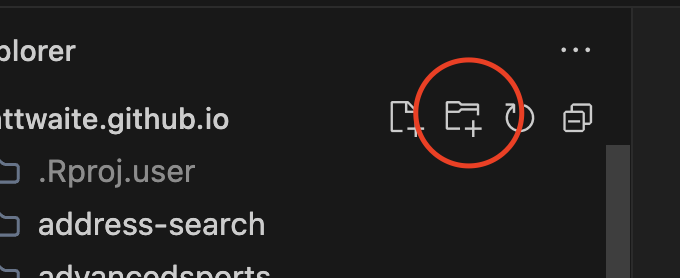
You should name this folder dataname-search where dataname is a one word description of your data. If your data is election data, make it election-search. If it’s Groundhog Day predictions, make it predictions-search. The reason you use lowercase letters and dashes for spaces is because this folder name will be part of the url.
Click and highlight your folder after you have created it.
Step 4: Put your data into the dataname-search folder
That’s it. Just move it into that folder. You can drag the file from your file explorer (Finder on Mac, File Explorer on Windows) into the folder in Antigravity and it will move it.
Step 5: Time to prompt
With your folder created and your csv inside of the folder, it’s time to tell Antigravity what you want. Your prompt should: * Say that you are creating a web search of this data in your dataname-search folder. * That the page is hosted on Github Pages so it must be static files. * That you intend to iframe the page into a Content Management System elsewhere. * What columns you want people to be able to search. * How you want the data to be displayed, correcting any column names that won’t make sense to the general public. For example, if your column is called Jurisdiction_Name, you should tell Gemini you just want that to be Name. ### Step 6: Review and revise
What do you think? Don’t like something? Tell Gemini to change it.
Step 7: Commit and push to Github
Click the Source Control button. In the box that says Messages, say what you are committing. In this case, it’s likely something like Adding dataname search. It does not need to be verbose. It’s a note to yourself what this is so that you can know at a glance later what it is if you were to go diving through your own git commits. When done click commit.