Install R
R is the programming language. Download the latest version from CRAN — the Comprehensive R Archive Network.
What to download
-
check_circle
R 4.4 or newer
Choose the version that matches your operating system. On macOS, pick the Apple Silicon (arm64) version if you have an M-series Mac.
-
check_circle
Windows: also install Rtools
Rtools lets you install packages that require compilation from source. Download it from the same CRAN page.
-
check_circle
macOS: also install XCode Command Line Tools
Open Terminal and run
xcode-select --installif you haven't already.
Install RStudio
RStudio is the editor that makes working with R comfortable. Download the free Desktop version from Posit (the company that makes RStudio).
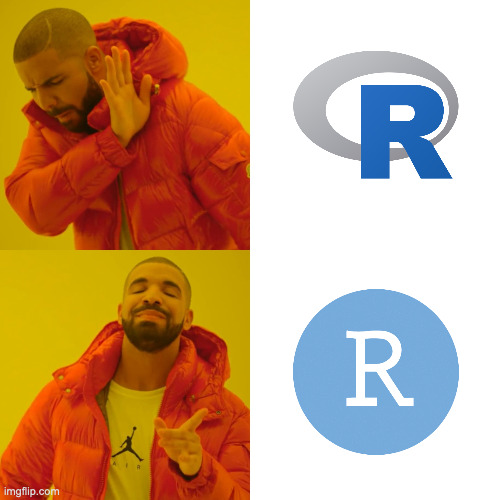
Important: After installing both R and RStudio, two icons will appear on your computer. Always open RStudio — never the bare R app.
RStudio Desktop
posit.co — free, open source
Install packages
Open RStudio, find the Console pane (bottom-left), and paste this entire command. It installs everything the tutorials use in one shot — including tidyverse, ggplot2 extension packages, data packages, and devtools for the next step.
This can take 5–10 minutes on a fresh install. Let it run — R will show output as each package installs.
Two packages — ggbump and ggalt — are not on CRAN and must be installed separately from GitHub after this step.
# Paste this entire block into the Console and press Enter
install.packages(c("tidyverse", "rmarkdown", "lubridate", "janitor", "gt", "patchwork", "learnr", "wehoop", "remotes", "devtools", "ggrepel", "ggbeeswarm", "ggtext", "rvest", "Hmisc", "cluster"))
# These two packages must be installed from GitHub
devtools::install_github("mattwaite/ggbump")
devtools::install_github("mattwaite/ggalt")
Install the tutorials
The SportsDataTutorials package lives on GitHub. Use devtools (installed in Step 3) to install it.
Make sure you completed Step 3 and devtools is installed.
Run the command on the right in the RStudio Console. If R asks whether to install or update packages, just press Enter to proceed.
When it finishes, restart RStudio. The tutorials appear in the Tutorial tab in the top-right pane.
# Install the SportsDataTutorials package from GitHub
devtools::install_github("mattwaite/SportsDataTutorials")
How to open a tutorial
After restarting RStudio, click the Tutorial tab in the top-right pane. You'll see a list of all 40 lessons. Click "Start Tutorial" on any one to begin. Each tutorial opens in a browser-like panel inside RStudio — write code directly in the exercises.
Common issues
I don't see a Tutorial tab in RStudio
Make sure you restarted RStudio after installing the package. If the tab still doesn't appear, try running library(SportsDataTutorials) in the Console to check whether installation succeeded.
Package installation fails with a compilation error (Windows)
Make sure Rtools is installed — see Step 1. You may also need to restart your computer after installing Rtools before R can find it.
devtools::install_github fails with "Could not find package"
Check your internet connection and make sure you have devtools installed. Run install.packages("devtools") to be sure, then try again.
Tidyverse installation takes forever or fails
This is normal on a fresh R install — it's compiling several packages. Let it run. If it fails partway through, note the package name in the error and install that package individually first.
Still stuck?
Open an issue on the GitHub repository with details about your OS version, R version, and the exact error message you're seeing.
All set?
Open the Tutorial tab and start Lesson 1
In RStudio, click the Tutorial tab in the top-right pane. Find "Sports Data Lesson 1: The Basics" and click Start Tutorial.
Browse all 40 tutorials →